
|
EZTag CE - Plan View Toolbar |

|
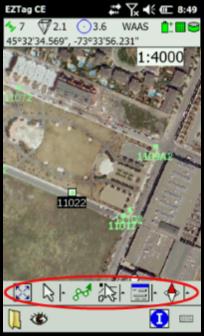
The Plan View Toolbar allows to manage the Plan View Window.
The first icon
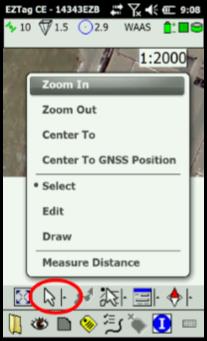
The Select (available through the second icon)
After an item is selected, you can Navigate Other options are available for the selected item when you click on ■ Navigate to the selected item; ■ Delete the selected item (background maps items cannot be deleted); ■ With Properties, you can review or edit features attributes (background maps items can be reviewed but cannot be edited).
The select arrow (available through the second icon) also gives access to other menus: ■ Zoom In and Zoom Out. ■ Center to (click a location on the map to center it on the location selected). ■ Center to GNSS Position (to center the plan view on the current GNSS position). ■ Edit allows to move a GNSS feature. Background maps items cannot be moved. ■ Draw allows to manually draw (rather than using the GPS position) a GNSS feature on the map (at a picked/clicked location). Background maps items cannot be placed. ■ Measure Distance tool allows to display the distance between 2 points for a line, cumulative distances for a polyline and perimeter/area of a polygon. Another useful tool related to the Plan View is the scale dropdown list (Plan View upper right corner |


|
Article: 000066 Related Products: EZTag CE Last Update: 2017-04-11 18:06:32 |
|
Document information |

|
|